llama.cpp for Beginners: Build, Run and Tune Your First Local LLM
A simple step-by-step llama.cpp guide for beginners: compile from source, run a GGUF model, use GPU acceleration, and tune the main inference settings.
Approximately 4 min read
I come from a finance background, not computer science. When I started reading about local AI, llama.cpp looked more difficult than it really was. You can get useful results with a small number of commands, then learn one setting at a time.
This guide follows that order: build a runtime, run a small model, confirm the hardware path and save a baseline. The sampling and memory controls come after the first successful answer.
Build a CPU or CUDA runtime
Install Git, CMake and a supported C++ compiler using your operating system’s normal development tools. CUDA builds also require the NVIDIA CUDA toolkit and a working driver. The project’s build documentation covers platform-specific setup.
For a CPU build:
git clone https://github.com/ggml-org/llama.cpp.git
cd llama.cpp
cmake -B build -DCMAKE_BUILD_TYPE=Release
cmake --build build --config Release -j
For an NVIDIA CUDA build from the same checkout:
nvcc --version
cmake -B build-cuda -DGGML_CUDA=ON -DCMAKE_BUILD_TYPE=Release
cmake --build build-cuda --config Release -j
./build-cuda/bin/llama-cli --list-devices
The examples below use the CUDA build. Use the corresponding CPU executable if that is the build you made. On platforms using a multi-configuration build system, inspect the generated executable location.
Run one small model
The CLI can download a supported GGUF from Hugging Face:
./build-cuda/bin/llama-cli -hf ggml-org/Qwen3.5-0.8B-GGUF -cnv -c 4096 -n 256
For a file you downloaded yourself, use its path:
./build-cuda/bin/llama-cli -m ~/models/model.gguf -cnv -c 4096 -n 256
Read the model card and select an instruction model with a compatible chat template. Keep every shard if the artifact is split. Start with a short prompt and confirm that the response is coherent and generation finishes.
Learn five controls first
| Option | Job |
|---|---|
-m |
Choose the local model file |
-cnv |
Use conversation mode |
-c |
Set the context limit |
-n |
Limit generated tokens |
-ngl |
Control GPU-layer placement |
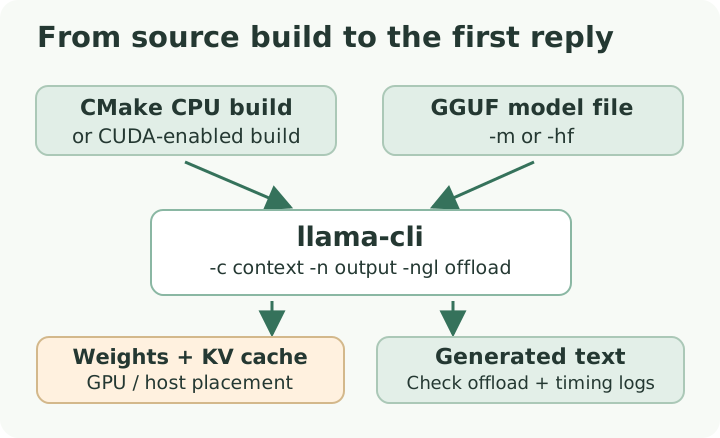
The GGUF file supplies the weights; llama-cli and its flags decide how the selected build runs inference. Read startup logs to confirm placement.
Check your binary’s --help before copying flags from another version. A model may load while only partly using the GPU; read offload logs as well as the device list.
For a supported build with automatic placement, a useful baseline is:
./build-cuda/bin/llama-cli -m ~/models/model.gguf -cnv -ngl auto -c 4096 -n 256
Choose a context that matches the first test. Loading the model’s maximum window can create unnecessary memory pressure before you know whether the basic path works.
Add sampling controls when needed
Temperature changes how sharply the model’s scores are used for selection. Top-k, top-p and min-p filter the candidate distribution in different ways. Use the checkpoint’s recommended settings first.
If comparing an adjustment, keep the prompt and other settings stable. A higher temperature is not inherently higher quality, and a stronger repetition penalty can damage ordinary language as well as suppress repetition.
Memory controls deserve the same discipline. Try a shorter context before experimenting with lower-precision KV cache. Flash Attention and cache types depend on backend and model support. The KV-cache guide explains what those allocations contain.
Start a local server
Once terminal chat works, the server provides a browser interface and an OpenAI-compatible API:
./build-cuda/bin/llama-server -m ~/models/model.gguf -ngl auto -c 4096 --host 127.0.0.1 --port 8080
Open http://127.0.0.1:8080 on that computer. Keep the loopback bind for this first setup. Network sharing is a separate configuration decision involving access control and the machine’s network environment.
Diagnose the first failure
| Symptom | Check |
|---|---|
cmake is missing |
Development-tool installation and PATH |
nvcc is missing |
CUDA toolkit installation and PATH |
| GPU absent from device list | Backend build and driver compatibility |
| Model file cannot be opened | Exact path and complete shard set |
| Out of memory | Weights, context and the allocation named in the logs |
| Strange answers with normal speed | Model choice, template and sampling |
Measure prompt processing and token generation separately when tuning. Save the runtime revision, artifact, command, memory use and a fixed test prompt. Later, change one setting and compare with that record.
For an update, pull the source and rebuild the same build directory, reconfiguring CMake when the project requires it. Run your saved test again before adopting the new binary for daily work. The local-speed guide provides the next diagnostic steps.